
Open chatcut.io, click Download, then open the file and follow the on-screen steps. You can also ask Codex or Claude Code to install ChatCut on this computer, or run one command. Once ChatCut opens, sign in or create an account.
ChatCut Desktop runs on macOS 13 or later, on Apple silicon or Intel, and on Windows 10 or later (x64). It isn’t available for Linux, phones or tablets.
Choose an install route
| Route | Best if | What you do |
|---|---|---|
| 1. Download from the website | You want the usual way to install an app | Click Download, open the file, follow three steps |
| 2. Ask Codex or Claude Code | You already use one of them on this computer | Paste one prompt into a new conversation |
| 3. Run one command | You’re comfortable in Terminal or PowerShell | Paste one line and press Return |
All three install the same app. Pick one, then sign in.
Option 1: Download from the website
- On the computer where you want ChatCut, open chatcut.io.
- Click Download for macOS or Download for Windows under the headline. The site picks the installer for your computer.
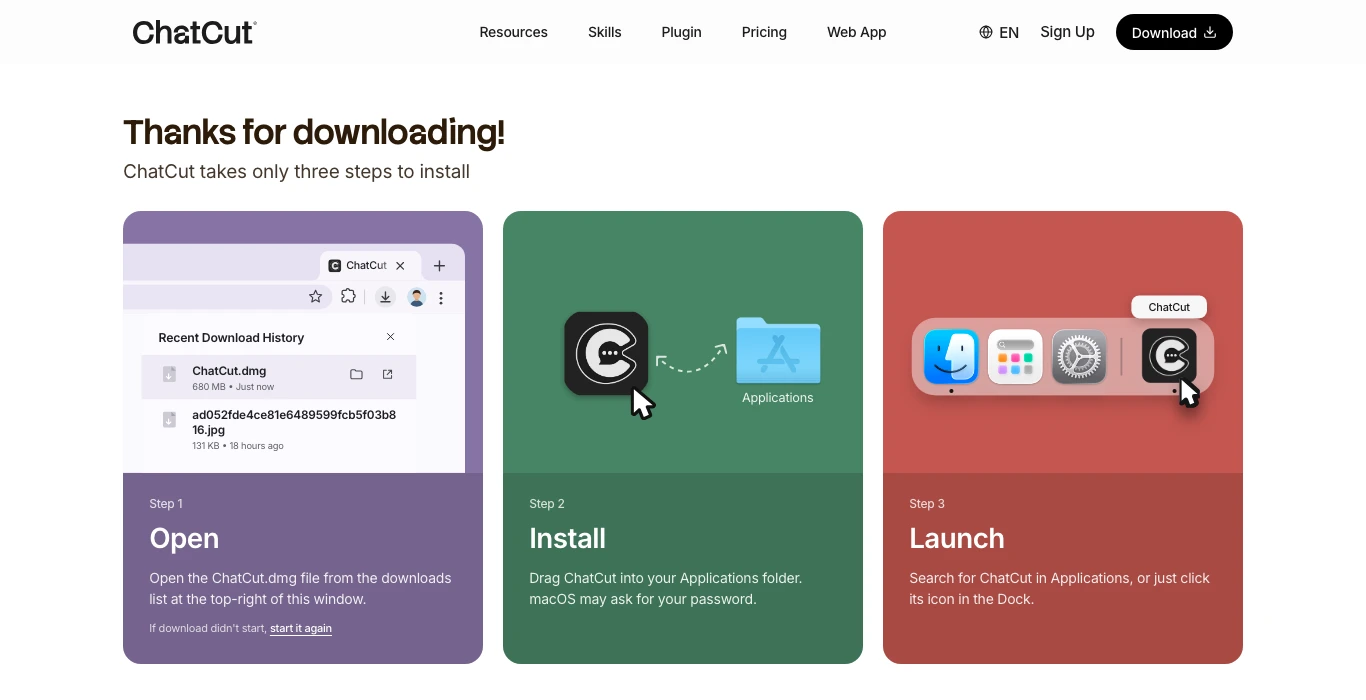
- The download starts, and the page changes to Thanks for downloading! with three steps for the file you got. If nothing downloads, click start it again on that page.

You get either a full package or a small online installer. The download page shows the steps for the one you got. Find the file in your browser’s download list (top right in most browsers) or in your Downloads folder.
| File you got | What to do |
|---|---|
| ChatCut full DMG (Mac) | Open it. Drag ChatCut into the Applications folder, then open it from there. |
| ChatCut-Online.dmg (Mac) | Open it and double-click ChatCut Installer. It downloads, installs and opens ChatCut. |
| ChatCut Online Setup.exe (Windows) | Open it and keep its window open while it works. ChatCut opens by itself when it’s installed. If it doesn’t, select Open ChatCut. |
| ChatCut Setup.exe (Windows) | Open it and follow the setup prompts. |
Option 2: Ask Codex or Claude Code
Use this route if Codex or Claude Code already runs on the computer where you want ChatCut. The agent runs the installer for you. It’s the same prompt the Use it in your Agent button shows on the homepage.
-
Open your agent on that computer. In the ChatGPT desktop app, choose Codex. In the Claude desktop app, open the Code tab and pick a Local environment. Codex CLI and Claude Code in a terminal work too.
-
Start a new conversation and send the prompt below.
Read ChatCut.io/desktop to install ChatCut -
The agent reads the official install guide and runs the command for your computer. If it asks for permission, check that the command matches the guide before allowing it.
-
Once ChatCut opens, sign in or create an account.
Option 3: Run one command
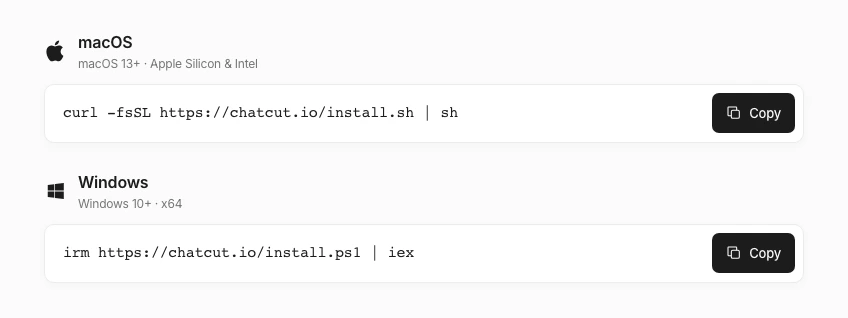
Use this route if you’re comfortable with a command line. The same command updates ChatCut later.
On a Mac, press Command-Space, search for Terminal, and open it. Paste the command and press Return.
On Windows, press the Windows key, search for PowerShell, and open it. Paste the command and press Enter.
The command downloads the current release if you don’t already have it, checks that ChatCut Inc. signed it, installs it and opens ChatCut. Then it opens sign-in in your browser. Last, it tries to connect the AI agents it finds on this computer, such as Codex and Claude Code. That last step is optional. If it can’t finish, ChatCut is still installed.
You don’t need Node.js or npm. On a Mac, don’t add sudo. When the command finishes, the window shows which ChatCut version is installed, or says your copy is already current.
Open ChatCut and sign in
Keep ChatCut open. If the installer opened a sign-in page, you can finish there. From the ChatCut window, Continue with Google opens your browser. Continue with email lets you enter the code inside the app.
For a new email, choose Create when asked, then enter the six-digit code ChatCut sends. If the browser asks to open ChatCut, allow it. Back in Desktop, check the account shown in the sidebar. Sign-in and account help
Use ChatCut with your AI agent (optional)
ChatCut tries to connect to Codex and Claude Code when it opens. To check the connection, follow these steps.
- If the agent app was open during setup, quit it and open it again.
- Start a new conversation. A conversation that was already open won’t see ChatCut.
- Ask something simple, such as
List my ChatCut projects. A list, even an empty one, means it’s connected.
To see which agents ChatCut found, click the agent icon at the top of its sidebar (Agents on this computer). Each agent shows whether it’s connected.
Next, make your first edit with Claude Code or with ChatGPT and Codex.
Troubleshooting
Nothing downloaded
On the Thanks for downloading! page, click start it again. You can also use Option 3 instead.
The browser didn’t reopen ChatCut after sign-in
- Make sure ChatCut is still open. If you closed it, open it again.
- In the browser, choose Try opening ChatCut Desktop again or Try again when shown.
- If the browser still can’t open ChatCut, try Continue with email in the ChatCut window.
You don’t need to reinstall. If none of this works, contact us and say which step you reached. Sign In and Account has more about sign-in.
Terminal or PowerShell says ChatCut is running
You’re updating a copy that’s open. Save your work, quit ChatCut normally and run the command again.
ChatCut won’t open on an Intel Mac
The website picks the Intel build when it detects an Intel Mac. If you got the Apple silicon build anyway, run the Terminal command in Option 3. It checks your Mac and installs the right build.
macOS or Windows shows a security warning
If macOS asks whether to open ChatCut Installer, choose Open. ChatCut is signed by ChatCut Inc. Don’t turn off Gatekeeper or other security checks to get past an error. Contact us with the exact message instead.
Your agent says it has no ChatCut tools
Start a new conversation. If that doesn’t help, quit the agent app, open it again and start another conversation. Then check that ChatCut shows you signed in. Reinstalling doesn’t fix this.
You’re on Linux, a Chromebook, a phone or a tablet
ChatCut Desktop isn’t available there. Use the ChatCut web app at app.chatcut.io in your browser.
How we checked these steps
On November 13, 2026, we tested the Mac download button on chatcut.io. It started an Apple silicon DMG download and opened the matching guide. We stopped the transfer after confirming the filename. The Windows steps come from the matching download guides. ChatCut Desktop help